

Is your external hard drive not showing up? It’s a common issue that can happen for several reasons, ranging from simple software glitches to serious hardware failures. External hard drives and HDDs are vital for storing backups, work files, and personal data. When your drive suddenly isn’t recognised by your computer, it can be stressful and confusing. The key is understanding whether the issue is physical (hardware-related) or logical (software or file system-related). Knowing the type of problem helps you decide whether you can try safe DIY fixes at home to fix external HDD or if professional help is needed to protect your data.
This guide will walk you through the signs of each issue, practical DIY solutions for logical problems, and clear advice on when to stop and seek professional assistance for external hard disk repair.
How to Tell If the Problem Is Physical or Logical
If your external hard drive or HDD isn’t recognised, the first step is to figure out if the issue is physical /hardware or logical, software/file system. Knowing this helps you decide whether a simple DIY fix will work or if professional help is required to repair the external hard drive.
Signs of a Physical Problem
Physical problems involve damage to the drive or its hardware components which are difficult to fix at home. Common signs include:
- Drive isn’t detected at all: It might be caused by a faulty USB cable, damaged port, or internal hardware failure. Try connecting the drive to another USB port, cable, or computer.
- Incorrect storage capacity: It might indicate firmware corruption or hardware failure. Try checking the drive size in Disk Management (Windows) or Disk Utility (Mac).
- Clicking, grinding, or no spinning (HDD) : It might be caused by damaged internal components. Stop using the drive immediately to avoid further damage.
- SSD powers on but isn’t recognised: It might indicate an internal electronic fault. Try connecting it to another computer to confirm the issue.
Note: Physical problems are generally not fixable at home. DIY attempts can make things worse and result in permanent data loss. Professional external hard disk repair is highly recommended to keep your data safe
Signs of a Logical Problem
Logical problems occur when the drive hardware is working, but the file system or partition has become corrupted. These issues are often fixable at home if you proceed with caution.
- Drive is detected but shows as RAW: The system recognizes the drive itself, but can’t read the file system. Often caused by malware, improper ejection, virus attacks, or software crashes. These crashes may also coincide with situations where your computer randomly freezes while trying to access the drive.
- Drive is unallocated or not initialised: The drive may show the correct size but needs to be initialised or formatted before use. It can erase existing partition information and cause loss of data. Logical repair tools can sometimes restore access without affecting the data.
- Files are missing or inaccessible: Files may appear corrupted, inaccessible, or missing, even though the drive shows the correct capacity. Software tools can sometimes recover these files. But if the data is important, get a professional to recover deleted files from the external hard drive.
Logical problems can often be fixed using disk repair, data recovery software or simply formatting. If your drive contains important files, recover your data before attempting repairs or formatting.
7 Quick DIY Fixes to Get Your External Hard Drive Working Again
Once you’ve identified that your external hard drive or HDD problem is likely logical rather than physical, there are several safe steps you can try at home.
1. Check the Power and Connection
One of the simplest and most overlooked fixes is checking that your external hard drive is properly connected and receiving enough power.
- Ensure the USB cable is securely connected to both the drive and your computer.
- If your drive requires an external power adapter, make sure it is plugged in and switched on.
- Older or high-capacity drives may require a dual USB (Y) cable to receive sufficient power.
- If you’re using a USB hub, connect the drive directly to your computer instead.
If the HDD isn’t spinning or the SSD’s activity light isn’t on, the drive may not be receiving enough power. This simple check can often resolve external hard drive detection issues without further troubleshooting.
2. Reboot Your Computer
A simple restart can resolve temporary software glitches or driver conflicts that prevent your external hard drive from being recognised.
- Restart your computer.
- Reconnect the external hard drive.
- Check whether it appears in File Explorer, Disk Management (Windows), or Disk Utility (Mac).
This quick fix often resolves recognition issues without affecting your data.
3. Test Another Cable, Port, or Computer
Faulty USB cables and ports are more common than hard drive failures, so rule them out first.
- Replace the USB cable with a known-working one.
- Connect the drive to a different USB port.
- Test the drive on another computer.
If your external hard drive works on another computer, the problem is likely with your original computer, USB port, or cable rather than the drive itself. This simple test helps determine whether the issue is with the drive or your computer.
4. Update or Reinstall Drivers
Outdated or corrupted drivers can stop your computer from recognizing the drive properly. So, reinstall or update drivers.
For Windows:
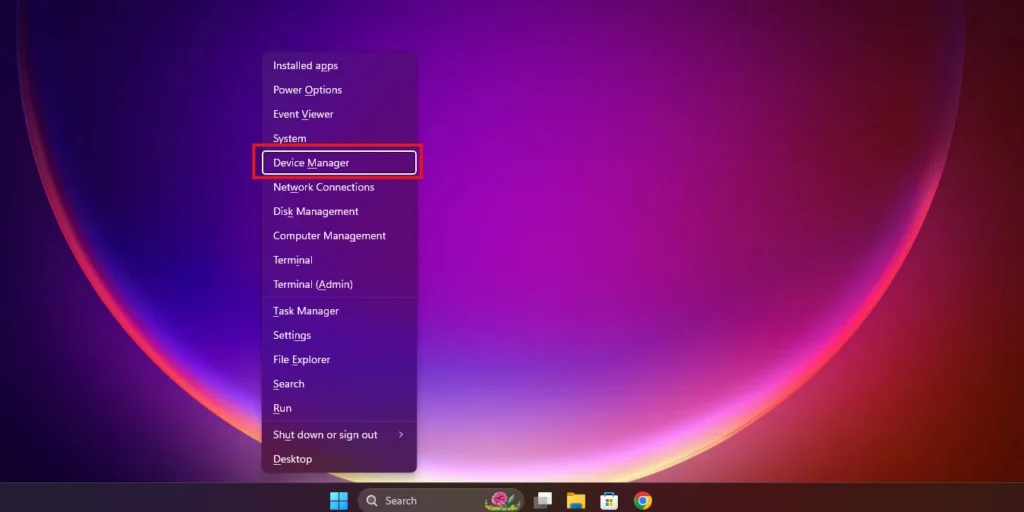
Step 1: Press Win + X and select Device Manager.
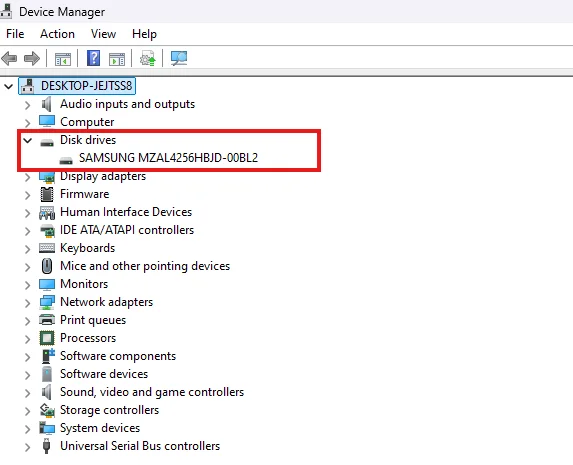
Step 2: Expand Disk drives.
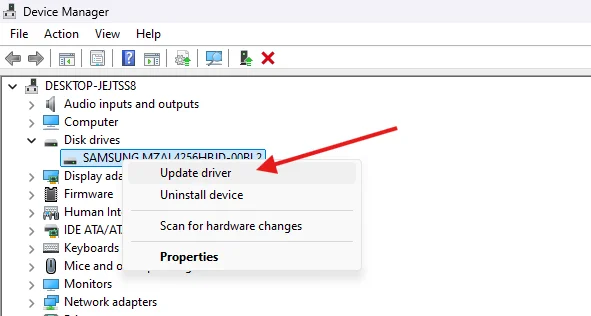
Step 3: Right-click your external hard drive and select Update driver.
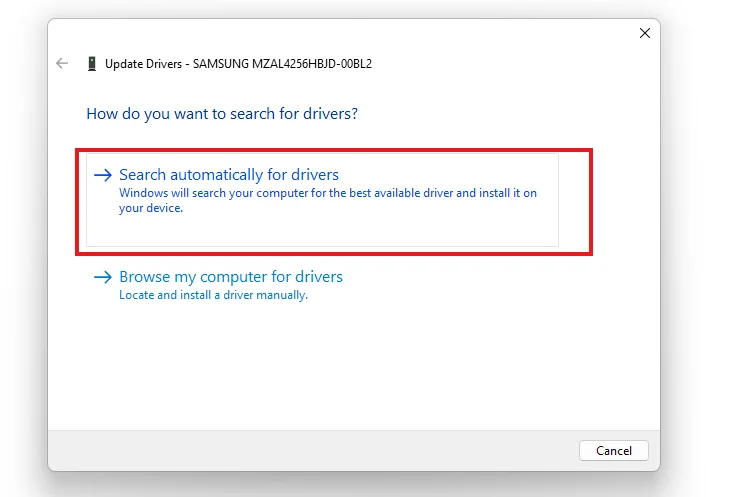
Step 4: Click Search automatically for drivers and let Windows search for and install the latest available driver.
Tip: If Windows can’t find a newer driver, visit your external hard drive manufacturer’s website to download the latest driver manually.
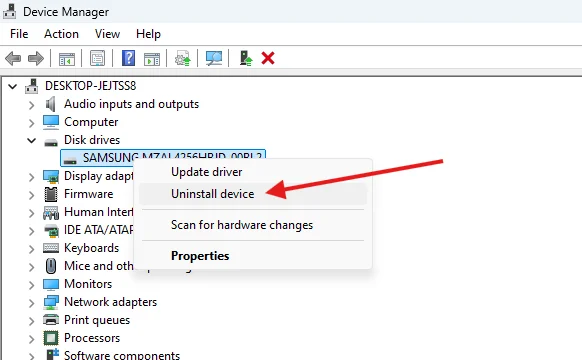
Step 5: If updating doesn’t work, select Uninstall device and restart your computer. Windows will automatically reinstall the driver.
For Mac:
- Drivers are mostly handled by the system, so keeping macOS up to date is the best step.
Keeping your drivers and operating system up to date helps prevent compatibility issues with external storage devices. If you’re experiencing update-related problems, our Software Updates service can help ensure your system is running the latest stable version.
5. Enable or Mount the Drive in Disk Management / Disk Utility
Sometimes, your external hard drive is recognised by the system but doesn’t appear in File Explorer because it isn’t mounted, initialised, or assigned a drive letter.
For Windows:
- Press Win + X and select Disk Management.
- Check if your external hard drive appears in the list.
- If it has no drive letter, right-click the drive and select Change Drive Letter and Paths, then assign a new drive letter.
- If the drive is Not Initialised, right-click it and select Initialize Disk.
For Mac:
- Open Disk Utility.
- Select your external hard drive from the sidebar.
- If it’s not mounted, click Mount.
Assigning a drive letter or mounting the drive can often make an external hard drive appear again without affecting your data.
6. Repair, Clean, or Format the Drive (Logical Issues Only)
If the drive is detected but unreadable, try repair tools before anything destructive.
- Repair: Use Check Disk (CHKDSK) on Windows, First Aid on Mac, or a reputable third-party disk repair tool to fix file system errors without affecting your data.
- Recover important files: If the repair doesn’t work and your drive contains valuable data, then seek professional help before formatting the drive.
- Format as a last resort: If repair tools fail and you don’t need the data, formatting the drive can restore access.
Logical corruption often results from unsafe ejection, software crashes, or malware. Using repair tools can fix many such problems safely without risking data loss. This can help fix an external HDD without professional help.
7. Remove and Test the Bare Drive (Optional, Advanced)
If your external drive sits in an enclosure, the enclosure’s interface or adapter might be the problem.
- Carefully remove the drive from the enclosure.
- Connect it directly to a desktop using a SATA adapter or docking station.
- Check whether the drive is recognised.
If the drive works outside the enclosure, the issue is likely with the enclosure, not the drive. Only attempt this if you’re comfortable handling hardware and understand the risks; improper handling can cause physical damage, permanent data loss, or void warranties.
When to Stop DIY and Seek Professional Help
While many external hard drive issues can be fixed at home, continuing to troubleshoot a failing drive can sometimes make the problem worse. Stop DIY troubleshooting and contact a professional to fix the external HDD if you notice any of the following:
- Physical damage to the drive: Clicking, grinding, or failure to spin (HDD) or no LED activity (SSD) indicates a hardware problem.
- Incorrect or impossible drive capacity: If the drive shows sizes far beyond or below its actual capacity, this could point to a firmware or hardware failure.
- Persistent unrecognised drive: The drive is not detected on multiple computers or after trying all safe DIY steps.
- Critical data at risk: The drive contains important files, and DIY repair attempts could lead to permanent data loss. That is why it is very necessary to always back up important data.
- Complex logical errors: RAW file systems, unallocated partitions, or repeated access errors that cannot be resolved with simple repair tools.
Attempting further DIY steps in these situations may damage the drive or compromise your data.
If you need professional assistance, Computer Mechanics offers data recovery, data transfer and backup, and laptop & PC repair services to help recover your files and diagnose external hard drive issues.
Conclusion
An external hard drive that isn’t recognised doesn’t always mean permanent data loss. The first step is to identify whether the problem is physical or logical, as this helps you decide whether a simple DIY fix or professional repair is the right solution. Checking the power and connection, trying a different USB port or computer, updating drivers, and using safe repair tools can often restore access to drives with logical issues. However, if your drive shows signs of physical damage or contains important data, it’s best to stop troubleshooting and seek professional help. Acting quickly and carefully can help protect your data and resolve the issue safely.
Frequently Asked Questions
1. Why is my external hard drive light on but not recognised?
If your drive powers on but doesn’t appear on your computer, it usually means something is preventing the system from reading it. Common problems include a corrupted file system, issues with the USB port or cable, a faulty drive enclosure, or internal electronic failures within the drive itself.
2. Why does my computer only recognize one external hard drive?
This can happen when multiple drives draw more power than a single USB port can supply, or due to driver, port, or file system conflicts. If you use a powered USB hub, connect one drive at a time, and update your drivers in a timely manner, this issue will most likely be fixed.
3. Why is my external hard drive detected but not showing files?
If your external hard drive is detected but not showing files, the file system may be corrupted, the files may have been accidentally deleted, or the drive may not have been assigned a drive letter. Hidden files or malware can also prevent your data from appearing. Before formatting the drive, try running CHKDSK (Windows) or First Aid (Mac). If your files are important, use data recovery software or seek professional data recovery assistance to avoid permanent data loss.
4. Can a damaged external hard drive be fixed?
Yes, but it depends on the type of damage. Logical issues can often be repaired using software tools. Physical or mechanical failures require professional repair or data recovery because DIY attempts on physically damaged drives can make the problem worse.
5. How much does it cost to fix an external hard drive?
The cost depends on the type and seriousness of the problem. Simple software repairs are usually cheaper. If the drive has physical damage or contains important data, professional recovery can be more expensive.
6. How do I recover data from an external hard drive that isn’t detected?
First, check whether the drive appears in Disk Management (Windows) or Disk Utility (Mac). If it does, avoid formatting the drive and try using data recovery software to recover your files. If the drive isn’t detected on any computer or shows signs of physical damage, stop using it immediately and seek professional data recovery to maximise the chances of recovering your data.
