

A slow MacBook doesn’t always mean it’s time for a new one. In most cases, the slowdown comes down to a handful of fixable causes, too little free RAM, a nearly full startup disk, too many apps loading at login, or background processes quietly using up resources.
Below, we’ll walk through the most common causes of a slow MacBook, how to identify what’s affecting your Mac, and the practical fixes you can try to improve its performance.
Key Takeaways
- Most MacBook slowdowns are caused by resource pressure (RAM or storage), too many background processes, or aging hardware; not simply “getting old”.
- Diagnose before you fix: check Activity Monitor’s Memory Pressure and your available storage before making changes.
- Easy fixes like restarting, quitting unused apps, closing browser tabs, solve a surprising number of slowdowns.
- Managing login items, updating software, and controlling iCloud syncing address the most common recurring causes.
- If software fixes don’t help, unusual noises, frequent crashes, or corrupted files point to a hardware issue worth having professionally diagnosed and repaired if needed.
Why Is Your MacBook So Slow?
A MacBook usually slows down because it’s running out of a resource it needs right now like memory, processor time, or disk space, not because it’s simply “old.” Even a MacBook from 2019 can run close to its original speed if it has enough free RAM and storage.
Some of the common signs your Mac is running slow:
- The spinning beach ball appears often, even for simple tasks like opening a Finder window
- Apps take longer than usual to launch, or freeze and become unresponsive
- Your Mac takes a long time to boot up or wake from sleep
- The fans run loudly and the case feels warm, even during light use
- Battery drains faster than it used to be
- Typing feels laggy, or the cursor stutters when you move it
- Safari, Chrome, or another browser becomes sluggish once several tabs are open

What Usually Causes a MacBook to Run Sluggish or Very Slow?
In order of how often each one is the real culprit:
- Low free RAM: Too many apps or browser tabs open at once, forcing macOS to rely on slower virtual memory (swap).
- Low disk space: Try to keep a reasonable amount of free space on your startup disk (around 20%), because macOS needs breathing room to manage temporary files.
- Too many login items: Apps set to launch automatically at startup, stacking up in the background.
- Background processes: iCloud syncing, Spotlight indexing, or Time Machine backups running while you’re trying to work.
- Outdated macOS or apps: Missing performance and stability fixes.
- Ageing hardware: A mechanical HDD instead of an SSD, or a Mac that’s simply reached the limit of what its chip and RAM can comfortably handle.
How to Tell If It’s RAM, Storage, or Something Else
Before you start closing apps or deleting files, spend two minutes finding out what’s actually under strain. This saves you from fixing the wrong thing.

1. Check Memory Pressure in Activity Monitor
Activity Monitor is the built-in macOS tool that shows exactly how your Mac’s resources are being used.
Open it via Spotlight (Command + Spacebar, then type “Activity Monitor”) or from Applications > Utilities.
To check memory pressure:
- Open Activity Monitor and click the Memory tab
- Look at the Memory Pressure graph at the bottom of the window
- Green means your Mac is managing memory comfortably
- Yellow means memory resources are being used more heavily than ideal
- Red indicates that macOS is under significant memory pressure and may be relying heavily on compressed memory and swap
While you’re there, click the CPU tab to see which apps are using the most processor power. Anything sitting consistently near the top that you’re not actively using is worth quitting.
2. Check Available Storage Space
Low storage causes many of the same symptoms as low RAM; sluggish app launches, laggy Finder windows, slow saves because macOS needs free disk space to manage temporary and swap files efficiently.
To check:
- Click the Apple menu > System Settings
- Click General in the sidebar, then Storage
- Review the coloured storage bar and the category breakdown underneath
Try to keep at least 15–20% of your startup disk free. When storage gets very low, macOS and apps have less room for temporary files, caches, updates, and virtual memory.
3. Run Apple Diagnostics
If it’s neither RAM nor storage, run Diagnostics. Apple Diagnostics (previously called Apple Hardware Test) checks your Mac’s components, logic board, memory, wireless, and more, and reports specific hardware issues.
On Apple Silicon Macs:
- Shut down, then press and hold the power button as it turns on
- Release when the startup options window appears
- Press Command + D to launch Diagnostics
On Intel Macs:
- Restart and immediately press and hold the D key
- Release when the progress bar appears, or when prompted to choose a language
The results appear as reference codes that identify specific hardware issues, which you can look up or bring to a repair technician for a definitive diagnosis.
How to Fix a Slow Mac (Quick Fixes)
These take seconds each and solve a surprising number of slowdowns on their own.

1. Restart Your Mac
Restarting your Mac sounds basic, but it actually works. Restarting closes running processes, clears some temporary system state, and gives macOS and your apps a fresh start. It can resolve temporary software glitches and resource buildup, particularly if your Mac has been running for a long time without a restart.
2. Quit Resource-Hungry Apps
Video editors, virtual machines, and some browsers can consume CPU and memory well beyond what they need for the task at hand. In Activity Monitor’s CPU or Memory tab, select any app using unusually high resources and click the X button (or the stop icon) to quit it, provided it’s an app you recognise rather than a system process.
3. Close Unused Browser Tabs
Every open tab consumes memory, and media-heavy or complex tabs can use significantly more. If you keep dozens of tabs open “just in case,” bookmark them or add them to your reading list instead of leaving them loaded. This one habit change measurably reduces memory pressure on Macs with 8GB or 16GB of RAM.
4. Check Your Internet Connection
If the slowdown only shows up when streaming, downloading, or in video calls, your Mac might be fine; it could be your network. Run a quick speed test. If results are well below what you’re paying for, try moving closer to your router or restarting your modem before assuming it’s a Mac problem.
How to Speed Up MacBook (Software Fixes)
Once you’ve ruled out the obvious, system-level adjustments address the most common root causes of a mac running slow over time.
1. Update macOS and Your Apps
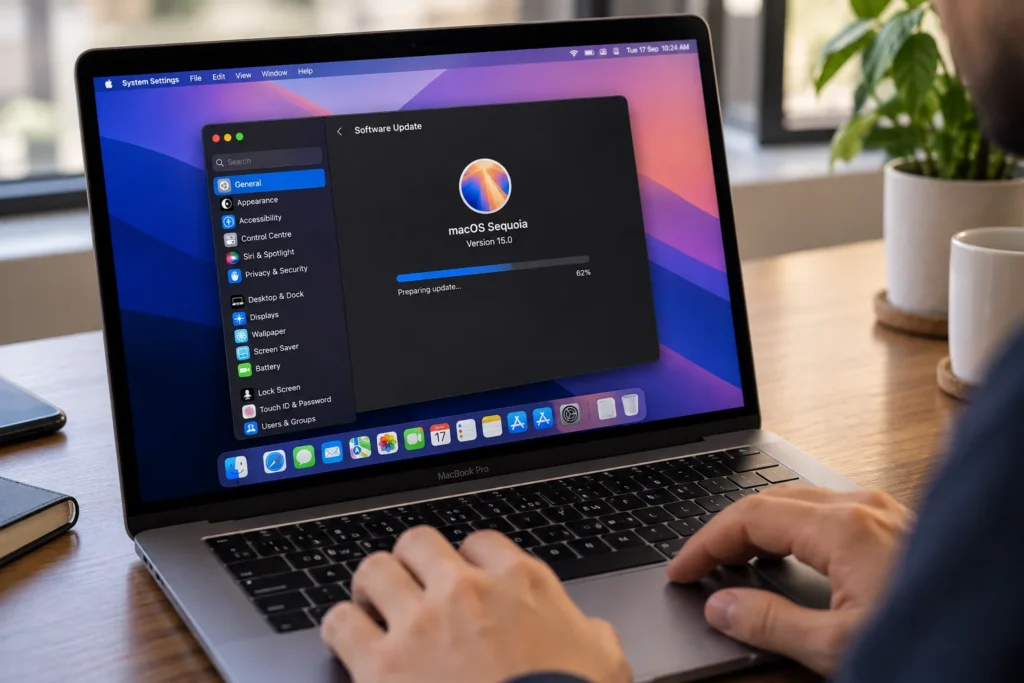
Outdated software is one of the most overlooked causes of poor performance. Each macOS update includes stability and efficiency improvements, and app updates often fix memory leaks from previous versions.
To update macOS:
- Apple menu > System Settings > General > Software Update
- If an update is available, click Update Now
To update apps:
- App Store apps: open the App Store, click Updates, then Update All
- Other apps: open the app and check its menu for “Check for Updates,” or check the developer’s website
Note: macOS can feel slightly slower for the first 24–48 hours after a major update while background indexing and optimisation finish. It isn’t a sign the update made things worse long-term.
2. Manage Startup/Login Items
Apps that launch automatically at startup are a common, invisible drag on boot time and background resources.
- Apple menu > System Settings > General
- Click Login Items & Extensions
- Review the list and turn off anything you don’t need running the moment you log in, keep security or antivirus tools, and disable the rest
Fewer login items means a faster boot and less competition for RAM and CPU the moment you sit down to work.
3. Turn Off Visual Effects and Animations
macOS’s window animations look polished but they highly consume GPU and CPU cycles, particularly noticeable on older or lower-spec Macs. If animations feel sluggish on an older Mac, reducing visual effects can make the interface feel more responsive.
- System Settings > Desktop & Dock
- Turn off “Animate opening applications” and “Automatically hide and show the Dock”
- Change “Minimize windows using” from Genie Effect to Scale Effect
4. Reindex Spotlight If It’s Stuck
Spotlight indexing runs in the background and normally finishes within a few hours of a major update. If your Mac has felt slow for days rather than hours after an update, indexing may be stuck.
- System Settings > Spotlight > Search Privacy
- Drag your hard drive into the Privacy list, wait a few seconds, then remove it again by clicking the minus (−) button
This forces Spotlight to restart indexing from a clean state.
5. Manage iCloud Syncing
iCloud is convenient, but constant background syncing, especially of iCloud Photos or large iCloud Drive libraries, can quietly consume both CPU and network resources.
- System Settings > Apple Account > iCloud
- Click See All to review which apps and data types are syncing
- If a large sync is in progress, let it finish before troubleshooting further
- If you’re low on storage, review iCloud Drive settings and consider whether Optimise Mac Storage can help free up local disk space
Tips To Clean Up Your MacBook
“Cleaning up” a Mac means clearing out the accumulated files that no longer serve a purpose but still take up disk space and, in some cases, slow down disk operations.

1. Clear Cache and System Junk Files
Cache files are temporary data that apps and browsers store to speed up future tasks. They usually manage themselves automatically, but clearing unnecessary caches can sometimes help free up storage or troubleshoot an app behaving unusually.
To clear manually:
- In Finder, press Command + Shift + G
- Type ~/Library/Caches and press Return
- Review the folders inside and delete only the ones you recognise as safe (browser and app caches are generally safe; avoid deleting anything you don’t recognise)
Note: System-level caches live in /Library/Caches and require more caution, since some files there are tied to system processes.
2. Empty Trash and the Downloads Folder
Deleted files still take up space until Trash is emptied and the Downloads folder is one of the most commonly overlooked sources of clutter, often holding years of installers, PDFs, and images nobody remembers downloading.
- Open Finder > Downloads, and delete anything you no longer need
- Empty the Trash (right-click the Trash icon > Empty Trash)
- Optionally, set Trash to empty automatically: System Settings > General > Storage > Manage, and enable automatic removal of items in Trash after 30 days.
3. Manage High Memory Usage
macOS manages memory automatically, so you usually don’t need a separate RAM-cleaning tool or Terminal command. If your Mac feels slow because of high memory pressure, identify and close apps using unusually large amounts of memory.
- Open Activity Monitor > Memory
- Sort the list by Memory to find the biggest users
- Quit apps you recognise but aren’t currently using
If memory pressure remains high, restart your Mac and check whether the problem returns.
Signs Your MacBook’s Hardware May Be Failing
If you’ve worked through every fix above and your MacBook is still running extremely slow, the cause may not be software at all.
- Unusual clicking, whirring, or beeping sounds (especially on older Macs with mechanical drives)
- Frequent, unexpected freezes or crashes that aren’t tied to a specific app
- Files that appear corrupted or go missing without being deleted
- Error messages referencing disk or hardware issues
- A battery that no longer holds charge, paired with overall sluggishness

Conclusion
Most MacBooks that feel slow aren’t beyond saving; they just need a bit of attention. Start by figuring out whether RAM, storage, or a background process is the real bottleneck, then work through the quick fixes before moving on to software adjustments and cleanup.
If your MacBook continues to run slowly after trying the fixes above, it may be time to have the underlying issue professionally checked. At Computer Mechanics, we provide Apple computer laptop repair services across Perth, including MacBook diagnostics, battery replacements, storage and RAM upgrades, charging and power repairs, overheating and performance troubleshooting, screen and keyboard repairs, and logic board diagnostics.
Our Perth technicians assess your Mac, identify the issue, and recommend the most practical repair or upgrade option, helping you get maximum performance from your existing MacBook before considering a replacement.
FAQs
1. How can I speed up an old MacBook?
Follow the steps to speed up an old MacBook:
- Restart your Mac
- Quit unused or resource-hungry apps
- Close unused browser tabs
- Update macOS and your apps
- Manage startup/login items
- Clear cache and system junk files
If it’s still slow, check the battery, storage, and other hardware for age-related issues.
2. Why is my Mac so slow and laggy all of a sudden?
A sudden slowdown is usually caused by something currently consuming system resources rather than the Mac simply getting older. Check Activity Monitor for an app using unusually high CPU or memory, and check whether macOS is performing background tasks such as Spotlight indexing, iCloud syncing, or a Time Machine backup. Also check your available storage, particularly if the startup disk is nearly full.
3. What is the life expectancy of a MacBook Air?
A MacBook Air can remain useful for around 5–7 years or longer, depending on the model, usage, battery condition, and how well it is maintained. Many models can remain usable beyond 7 years, although performance may decline and newer macOS versions may no longer be supported.
4. Can malware make a Mac run slow?
Yes. While Macs are less frequently targeted than Windows PCs, malicious software can and does consume significant CPU, memory, and network resources in the background. If your Mac has suddenly become slow alongside unfamiliar apps, run a scan with reputable security software and remove anything you don’t recognise.
5. Will updating macOS make my Mac slower at first?
Often, yes but temporarily. Right after a major macOS update, background indexing and system optimisation can make things feel sluggish for 24–48 hours. This is expected and typically resolves on its own once the process finishes; it isn’t a sign the update itself caused a permanent problem.
6. How much RAM do I actually need?
The amount of RAM you need actually depends on your workload. 8–16GB comfortably covers browsing, streaming, and everyday office tasks. 24–32GB suits moderate video editing, software development, or running virtual machines. 48GB or more is generally reserved for professional 3D rendering, 8K video work, or heavy AI/machine learning tasks.
