

A laptop that won’t turn on can be alarming, but it doesn’t necessarily mean the laptop is seriously damaged. You press the power button, but your laptop doesn’t start normally. In most cases, the cause is something simple and fixable: a faulty charger, a drained battery, a loose connection, or a display problem rather than a laptop that’s actually off. The trick is working through the right checks in the right order instead of guessing at hardware repairs you don’t need.
In this guide, we’ll walk through fixes that actually work, arranged from the quickest wins to the more advanced hardware checks, so you can figure out exactly what’s wrong before you spend money on a repair or know precisely when it’s time to seek professional repair.
Key Takeaways
- Most “won’t turn on” laptops have a power, battery, or display fault, not a dead motherboard.
- Always identify your exact symptom first (no signs of life vs. black screen vs. shuts off vs. charger-only vs. boot failure) the correct fix depends on it.
- A hard reset (20–30 second power button hold with charger/battery removed) is safe, free, and resolves a large share of laptops not turning on cases.
- An external monitor test is the fastest way to tell a display fault from a genuine power fault.
- Stop troubleshooting and call a professional at the first sign of burning smells, excessive heat, or liquid exposure.
Before You Troubleshoot: What “Laptop Won’t Turn On” Actually Means
“My laptop won’t turn on” can describe five very different problems, and the right fix depends on which one you’re actually seeing. Before trying anything, work out which of these matches your laptop:
- No signs of life at all: No lights, no fan noise, no warmth, nothing happens when you press the power button.
- Lights and fan are on, but the screen stays black: This is often a display issue, not a power issue.
- It turns on, then shuts off within seconds: Usually points to overheating or a battery/power fault.
- It only turns on while plugged into the charger: A strong sign of a battery health problem and can sometimes be linked to a laptop not charging issue.
- It powers on but never reaches the logo or Windows: A boot failure rather than a power failure.
Check Your Power Source
Power problems are the single most common reason a laptop won’t turn on, and they’re the easiest to rule out first.
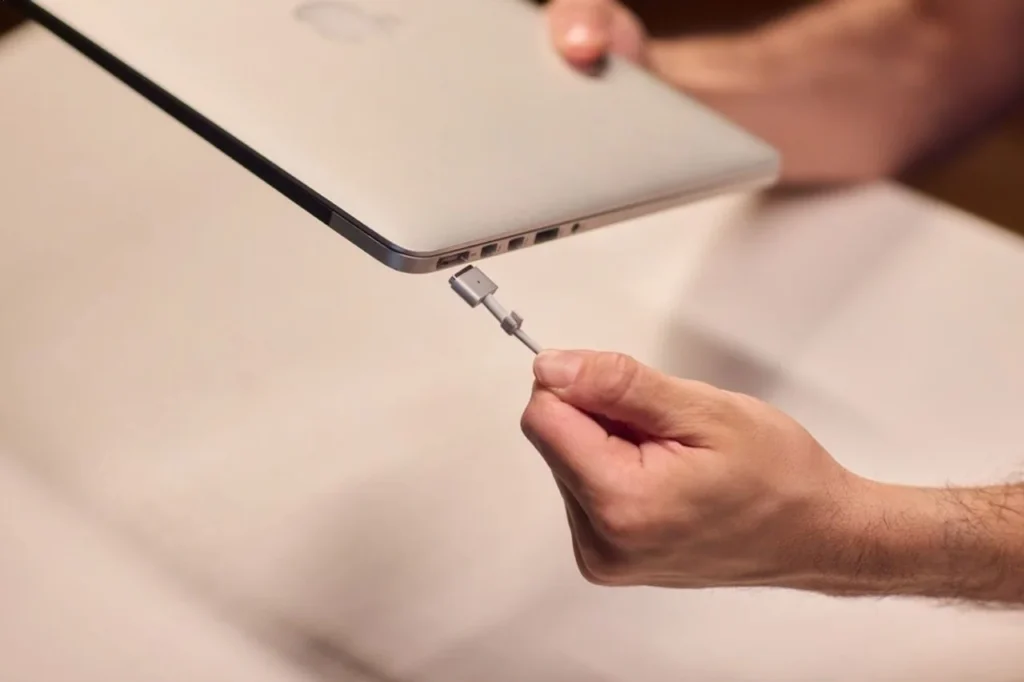
Fix 1: Confirm you’re using the correct charger
Many laptop AC adapters look identical even though they output different voltage and amperage. If you’ve grabbed the wrong one by any chance, the laptop may not power on at all, even though the charger itself works fine. Check the label on the underside of the adapter against your laptop’s power requirements, and if in doubt, use only the original charger or a manufacturer-verified replacement.
Fix 2: Test a different power outlet
A dead wall socket, a tripped surge protector, or a faulty power board can all mimic a laptop fault. Plug the charger into a different outlet, ideally on a different circuit before assuming that the laptop not turning on is due to the problem inside the laptop itself.
Fix 3: Inspect the charger cable for damage
Frayed cables, bent pins, or a loose connection at either end of the cable can interrupt charging without any obvious sign. Look closely along the length of the cable and at both connectors. If you have access to a second charger of the same specification, swap it in to confirm whether the original charger is actually at fault.
Clear Out Interference
Fix 4: Remove peripherals and bootable media
Disconnect any docking station and plug the charger directly into the laptop, a faulty charging port or connection inside a dock can prevent power from reaching the machine at all. At the same time, remove any USB drive or DVD left in a drive; a leftover bootable USB stick is a surprisingly common and easily overlooked cause of a laptop that seems to hang before starting properly.
Reset the System
Fix 5: Do a power drain / hard reset
Residual electrical charge in a laptop’s circuits can occasionally prevent it from powering on, even with a good charger and battery. To clear it:
- Unplug the charger and, if the battery is removable, take it out.
- Press and hold the power button for 20–30 seconds.
- Reconnect the battery (if removed) and the charger.
- Wait a few seconds, then press the power button normally.
This hard reset does not normally erase your files. It helps clear residual electrical charge and reset the laptop’s power-management circuitry.
Rule Out a Display Problem
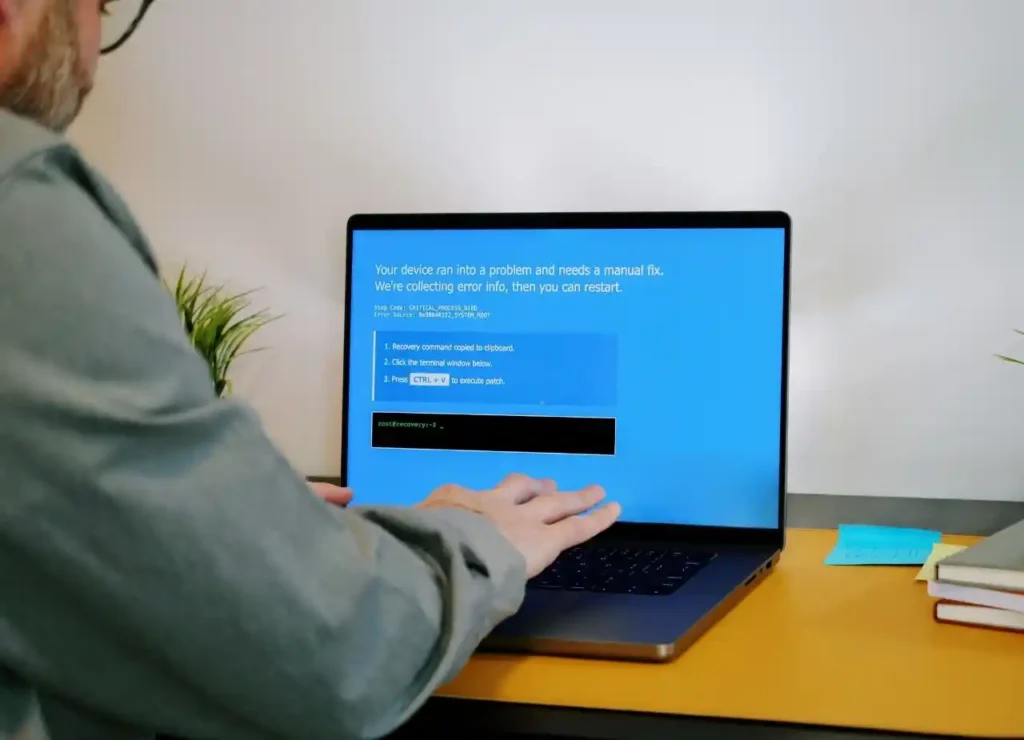
Sometimes the laptop is turning on perfectly fine; it’s the screen that isn’t showing anything, which looks identical to the laptop being off.
Fix 6: Increase brightness and toggle display output
Press the brightness function key (usually paired with Fn) to rule out a screen that’s simply dimmed to zero. Also try the display-toggle key combination, which cycles between internal screen, external monitor, and both, a laptop that was last used with a second monitor can sometimes default to an output your screen isn’t showing.
Fix 7: Test with an external monitor
Connect the laptop to an external monitor or TV via HDMI. If an image appears there but not on the built-in screen, the issue is a display or backlight failure, not a power issue, and the laptop itself is working normally. This is one of the most useful diagnostic steps because it immediately separates a power light is on, black screen scenario from a genuine power fault.

Check the Battery
Fix 8: Boot on AC power only
If your laptop has a removable battery, take it out and try starting the laptop on the charger alone. If it powers on this way but not on battery, you’re dealing with a battery health problem rather than a charger or motherboard fault.
Fix 9: Let it charge for 15–30 minutes before retrying
A battery that’s been completely drained sometimes needs a short charging period before the laptop will respond to the power button at all. Generally pressing the power button repeatedly on a deeply discharged battery won’t help. If your laptop only turns on while plugged in and never holds a charge on battery alone, that’s a clear sign the battery has degraded and the battery needs replacing.
Address Overheating
Fix 10: Let it cool down and clear the vents
Laptops have built-in thermal protection that cuts power automatically if internal components, usually if the CPU temp rises above ideal, which explains a laptop that turns on then shuts off within seconds. This is common when a laptop has been used on a bed, sofa, or pillow, where soft surfaces block the cooling vents. Let the overheating laptop cool for 20–30 minutes on a hard, flat surface, then clear dust from the vents before trying again. Making a habit of using a laptop on a hard surface and cleaning the vents every few months prevents this from recurring.
Fix a Boot Failure (Logo Appears, Then Fails)
Fix 11: Try a forced restart and built-in recovery tools
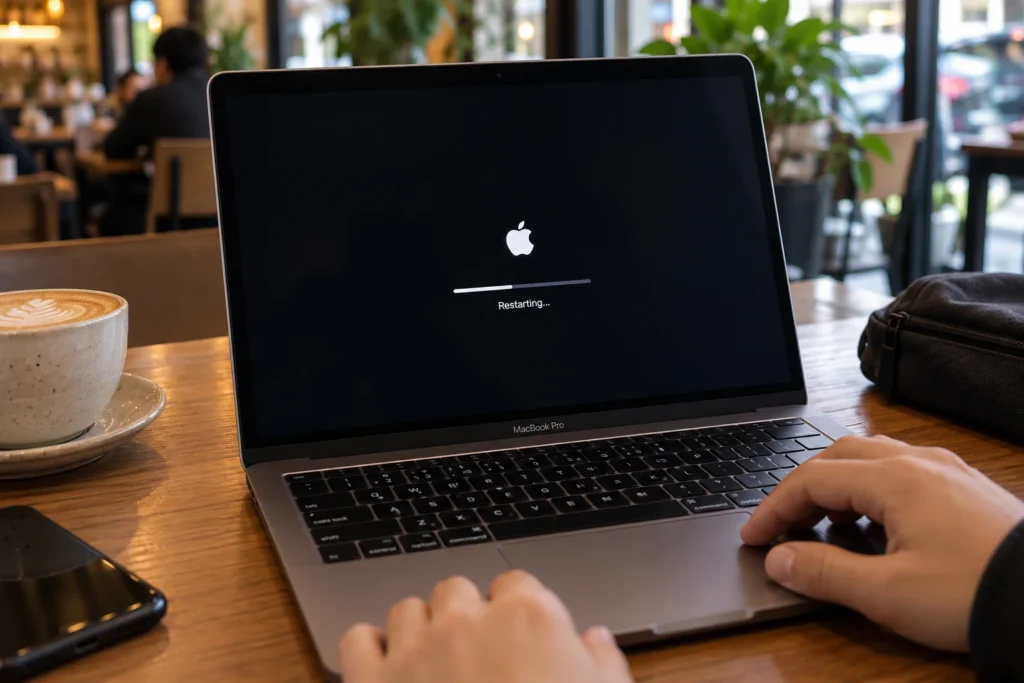
If your laptop powers on, shows the manufacturer logo, and then fails before reaching Windows, this is a boot failure rather than a power fault. Hold the power button for 10 seconds to force a shutdown, then power on again. This approach alone resolves many one-off boot failures. If it happens repeatedly, most laptops will automatically enter a recovery environment (Startup Repair) after a few failed attempts, which can fix common boot problems without erasing your files. Back up anything critical before running deeper repair tools, since some recovery options do involve a factory reset.
Advanced Hardware Checks
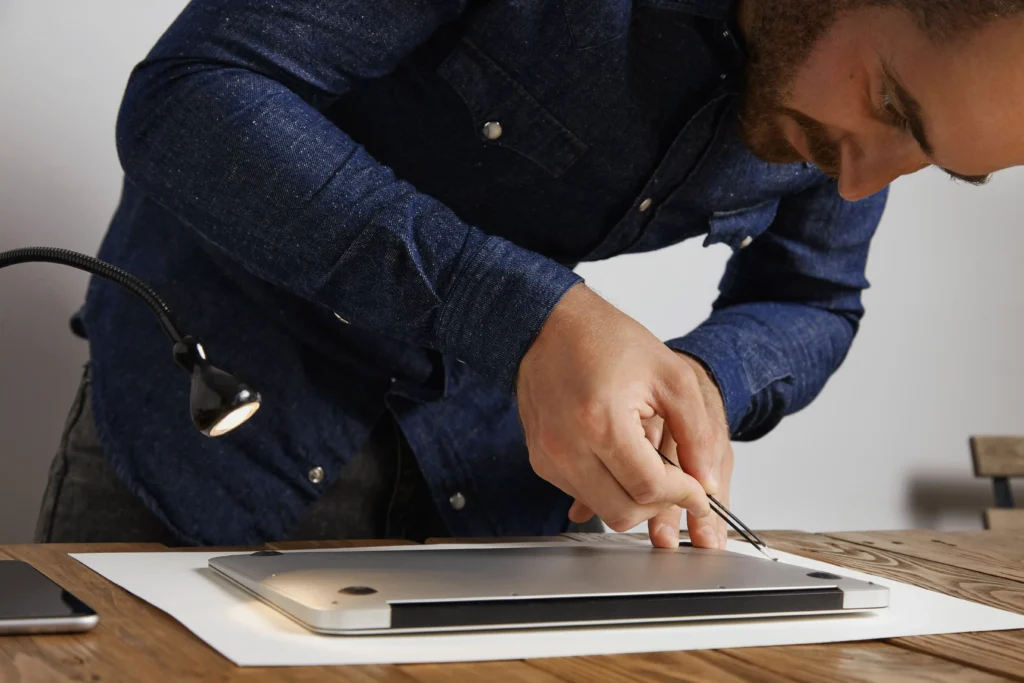
If you’re not confident with opening the laptop case or handling internal components, it’s safer to have a professional technician carry out these checks to avoid accidental damage.
Fix 12: Reseat RAM or check the CMOS battery
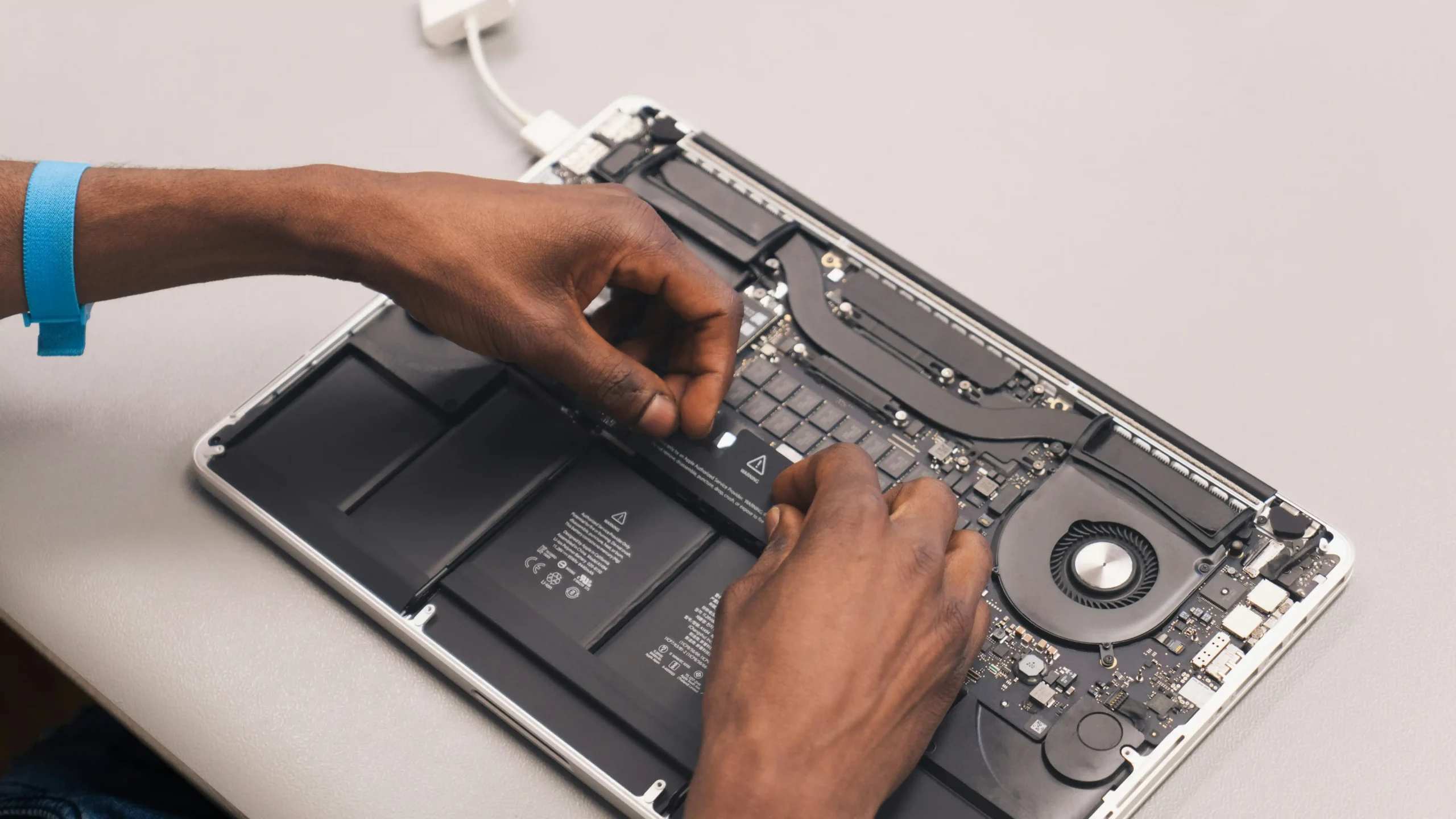
If you recently installed new RAM or a new hard drive/SSD and the laptop stopped booting immediately afterward, the new component may be incorrectly seated or faulty. Power off your device, unplug the charger, and carefully reseat it, using anti-static precautions to avoid electrostatic discharge damage to the motherboard.
Separately, every laptop motherboard has a small CMOS battery that keeps BIOS settings alive between uses. If this battery dies, the laptop may fail to complete POST (Power-On Self-Test) and won’t start at all. A major sign is if your laptop’s date and time keep resetting even when it’s working normally, that’s usually the CMOS battery failing before it causes a full won’t-turn-on fault. Replacing it is a straightforward technician job if you’d rather not open the case yourself.
Fix 13: Listen for beep codes and LED blink patterns
If your laptop won’t boot into Windows and you hear a repeating series of beeps, or notice the power LED blinking in a pattern, don’t ignore it. Beep codes and LED blink patterns are the motherboard’s way of signalling exactly which component has failed, whether that’s memory, the video card, or the processor. The pattern is specific to your laptop’s manufacturer, so check their support site or, if you’re not sure how to interpret it, record a short video of the pattern and share it with a technician, it can significantly speed up diagnosis.
When to Stop and Call a Professional
Some situations call for a professional repair technician rather than further DIY troubleshooting. Stop and book a reliable laptop repair service if you notice:
- A burning smell, smoke, or visible scorch marks
- The laptop or charger becoming extremely hot to the touch
- Any exposure to liquid, even if it seemed to dry out afterward
- Repeated beep codes or blinking patterns pointing to a motherboard or memory fault
- No signs of turning on after working through all the fixes above
Conclusion
Most laptops that won’t turn on are suffering from something simple; a wrong charger, a drained battery, a display quirk, or overheating issues and working through simple fixes resolves the majority of cases without any need for a workshop visit. The key is patience: rule out power and display issues first, only move into the hardware checks if you’re comfortable doing so, and pay attention to warning signs.
If your laptop still won’t start after the basic checks, it’s time to stop troubleshooting and bring in a professional diagnostic rather than risk further damage. At Computer Mechanics Perth, we diagnose and repair laptop power and boot issues every day, with the tools to properly test the motherboard, battery, and components at home troubleshooting can’t reach. Get in touch for a fast, no-obligation assessment before you consider the laptop unrepairable.
FAQs
1. Why won’t my laptop turn on at all?
A laptop that won’t turn on is usually caused by a faulty charger, a drained or failing battery, a loose connection, overheating, or a display issue rather than a genuine motherboard failure. If the laptop shows signs of burning, overheating, or liquid damage, stop troubleshooting and consult a repair technician.
2. How do you fix a laptop that won’t turn on?
Try these quick checks to identify and fix the most common reasons your laptop won’t turn on:
- Check the charger and power outlet.
- Inspect the charging cable and port.
- Disconnect external devices and docks.
- Perform a 20–30-second hard reset.
- Test an external monitor if the screen stays black.
- Check the battery if it only works while plugged in.
- Use Startup Repair if Windows won’t load.
If nothing works, have the laptop professionally diagnosed.
3. Why does my laptop only turn on when it’s plugged in?
This commonly indicates a battery that has become severely degraded or can no longer hold enough charge to power the laptop on its own. Try leaving the laptop connected to the charger for 15–30 minutes and then test it again. If the laptop consistently shuts down as soon as the charger is removed, the battery may need replacement.
4. How do I force my laptop to turn on?
You can’t force a laptop to power on if there is a failed battery, charger, charging circuit, motherboard, or other hardware fault, but you can try a hard reset:
- Disconnect the charger and all accessories.
- If the battery is removable, take it out.
- Hold the power button for 20–30 seconds.
- Reconnect the battery and charger.
- Press the power button normally.
5. Power light is on but the screen stays black, what does that mean?
It usually means the laptop is receiving power but isn’t displaying an image. First, increase the screen brightness and try the laptop’s display-output shortcut. Then connect an external monitor or TV if possible.
If the external display works, the problem is more likely to involve the laptop’s screen, backlight, display cable, or related hardware rather than the main power system.
