

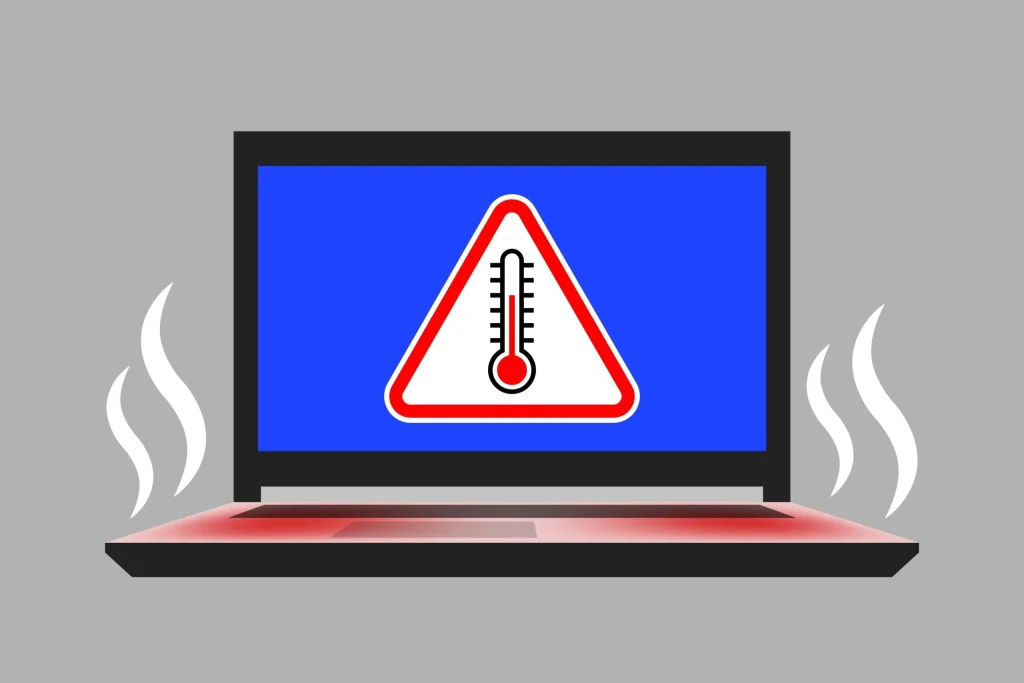
A laptop that’s too hot to hold on your lap isn’t just uncomfortable, it’s a warning sign. Excessive heat can accelerate component wear and cause performance and reliability problems. But most of the overheating problems can be fixed at home in under 30 minutes, without opening the case or spending a cent.
If your laptop is overheating, start by placing it on a hard, flat surface, closing CPU-heavy background apps, and switching to Balanced power mode. These simple steps can often bring temperatures down within minutes. If the problem persists after that, dust buildup inside the vents, ageing thermal paste, or even a failing fan, is almost always the next suspect.
This guide walks through to know whether your laptop is genuinely overheating (not just warm), the fixes that work, from simple software tweaks to hardware maintenance, and how to stop laptop overheating issues from returning.
How to Tell If Your Laptop Is Actually Overheating
Not every warm laptop is an overheating laptop. Laptops are designed to run warm during normal use because the CPU and GPU sit close together in a tight metal chassis. The difference between “normal warm” and “overheating” comes down to three things: how it feels, how it sounds, and how it performs.
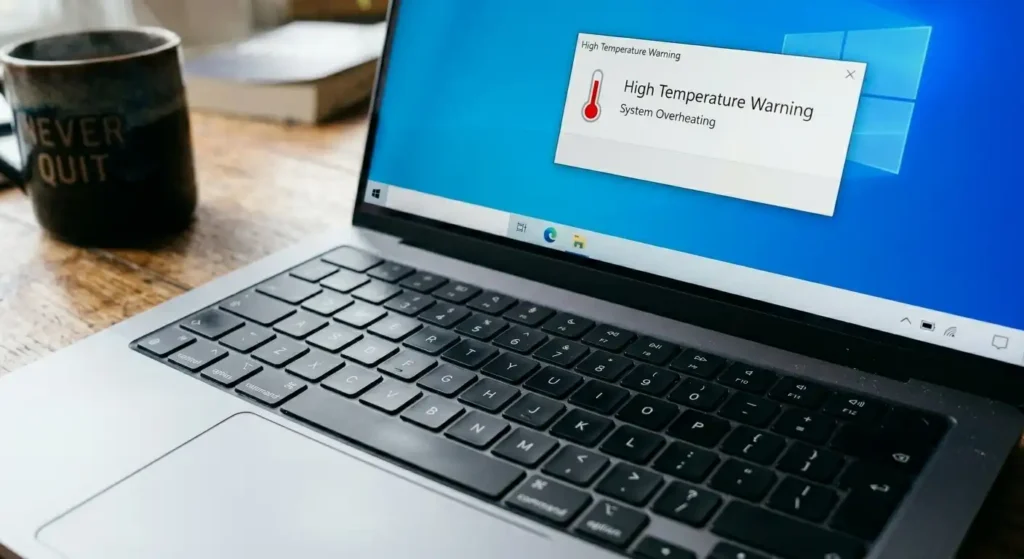
1. Physical Signs
If the underside of the laptop or the area above the keyboard (where the CPU usually sits) is too hot to comfortably rest your hand on for more than a few seconds, that’s a genuine overheating signal. Pay attention to whether the heat is isolated to one spot (often normal, since that’s where the processor lives) or spread evenly across the whole base, which can indicate poor internal airflow.
2. Loud Fan Noise
A laptop fan that spins up occasionally during a video call or a game is normal. A fan that runs at full speed constantly, even when you’re just browsing or typing, means the cooling system is working overtime to compensate for heat it can’t otherwise dissipate. This is one of the earliest and most reliable overheating symptoms, and it usually shows up before any performance issues do.
3. Performance Signs
When a CPU gets too hot, it automatically slows itself down to avoid damage, a built-in protection mechanism called thermal throttling. You’ll notice this as sudden lag during tasks that normally run smoothly, stuttering in games after 15–20 minutes of play, or a system that feels randomly sluggish. In more serious cases, the laptop may freeze entirely or shut down without warning. It usually happens when the CPU reaches a critical temperature and needs to prevent permanent damage to the silicon.
What Temperature Is “Too Hot”?
Most modern laptop CPUs are designed to operate safely up to around 100°C under sustained heavy load, but that doesn’t mean 100°C is a healthy normal temperature. It’s generally the ceiling before thermal throttling and shutdown protection engage.
| Activity Level | Typical Safe Range | Cause for Concern |
| Idle (browsing, typing) | ~ 35–50°C | Consistently above 60°C at idle |
| Moderate load (video streaming, office work) | ~ 50–70°C | Sustained above 80°C |
| Heavy load (gaming, rendering, compiling) | ~ 70–90°C | Sustained above 95–100°C, or throttling before reaching load capacity |
Free monitoring tools like HWMonitor or Core Temp, show live CPU and GPU temperatures in real time. Install one, open a normal workload, and monitor your CPU temperature. If your CPU is idling above 60°C with nothing demanding running, that’s a strong sign of a ventilation or dust problem rather than a workload problem.
Quick Actionable Tips to Fix Laptop Overheating
When your laptop seems to overheat, don’t panic. There are several easy fixes for laptop overheating that can make a big difference in making it run smoothly.
1. Move Laptop to a Hard, Flat Surface
Blocked airflow is one of the most common causes of laptop overheating. Laptop intake vents are almost always on the underside of the chassis. Using a laptop on a bed, couch cushion, blanket, or your lap physically blocks that intake, trapping heat inside with nowhere to go. Switching to a desk, table, or any hard surface restores airflow immediately.
2. Close Background Apps (Task Manager Walkthrough)
Hidden background processes are a frequent, invisible cause of CPU load and heat. To check what’s actually running:
- Press Ctrl + Shift + Esc to open the Task Manager directly.
- Click the CPU column header to sort processes by usage, highest first.
- Identify anything using a large share of CPU that you don’t recognise or aren’t actively using.
- Right-click it and select End Task.
- For a more detailed breakdown of resource-intensive applications, open Resource Monitor (search for it in the Start menu) to see CPU usage over time.
Browser tabs, cloud sync apps (OneDrive, Dropbox), and leftover game launchers are common, easily overlooked culprits.
3. Switch to Balanced or Power Saver Power Plan
Windows power plans directly control how hard your CPU is allowed to work, which has a direct relationship to heat output.
- On Windows 11: Settings → System → Power & battery → Power mode → select Balanced or Best power efficiency.
- On Windows 10: Control Panel → Power Options → select Balanced (or Power saver) from the plan list.
Switching from a “Best Performance” plan to Balanced can lower sustained temperatures noticeably, because it limits how aggressively the CPU boosts its clock speed.
4. Give It a Rest: Shut Down for 15–20 Minutes
If your laptop is hot right now, the fastest reset is simply to save your work and shut it down completely, not sleep but a full shutdown for at least 15 to 20 minutes. This lets the internal components return to a safe baseline temperature and gives you a clean slate to apply the other fixes once it’s back on.
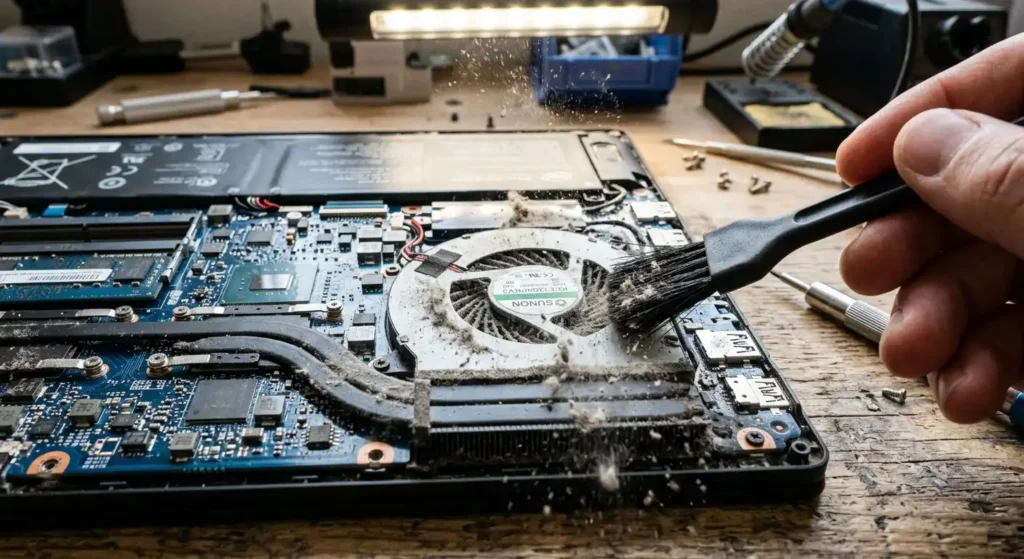
5. Clean the Vents With Compressed Air
Dust buildup is one of the major causes of laptop overheating. Over months or years of use, dust and lint get pulled in through the intake vents and settle on the heatsink fins, physically blocking airflow.
- Shut the laptop down and unplug it.
- Locate the exhaust vents (usually on the side or rear of the chassis).
- Use a can of compressed air in short, controlled bursts. Never do continuous spraying, which can damage fan bearings.
- Use short bursts of compressed air to avoid forcing the fan to spin rapidly. Hold the fan blades still with a toothpick or similar, to avoid over-spinning them.
- Repeat every 3–6 months as routine laptop maintenance.
6. Replace Thermal Paste
Thermal paste is the compound sitting between the CPU/GPU and the heatsink, responsible for transferring heat efficiently out of the chip. Over time, this paste dries out and loses effectiveness.
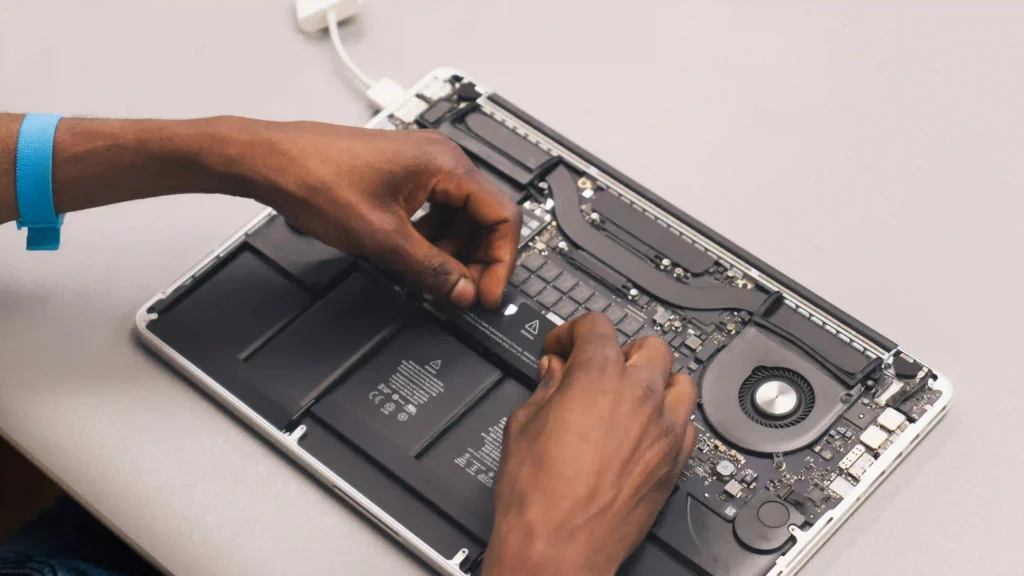
Replacing thermal paste requires opening the laptop chassis, making this a more advanced fix than the steps above. If you’re comfortable with basic disassembly and have the correct thermal paste for your CPU/GPU, replacing it can help reduce both idle and load temperatures. However, if you’re not confident, it’s safer to have a professional technician handle the job.
7. Update BIOS and Drivers
Outdated drivers, particularly chipset and GPU drivers, can cause components to run less efficiently than they should, generating unnecessary heat. Manufacturer tools like Dell SupportAssist or Lenovo Vantage can scan for and install the latest driver and BIOS updates automatically. Only install BIOS firmware intended for your exact laptop model, keep the laptop connected to AC power, and don’t interrupt the update process.
8. Run Windows Update
It sounds basic, but keeping your operating system current is a crucial line of defense against heating issues. Microsoft and hardware manufacturers regularly push out critical power management patches, firmware bug fixes, and hardware efficiency improvements through Windows Update.
- On Windows 11: Go to Settings > Windows Update (or Update & Security on Windows 10).
- Check and Install: Click Check for updates, let it scan, and make sure to install any pending system or optional driver updates.
- Restart: Once installed, perform a full system restart to let the changes take effect.
9. Replacing a failing fan:
If your laptop fan makes a loud noise or sounds like it’s grinding, rattling, or has stopped spinning altogether, no amount of cleaning or software tweaking will fix it. This typically requires either a DIY replacement (if you’re confident opening the chassis) or a professional replacement, since a dead fan means the cooling system has no active airflow at all.
How to Prevent Laptop Overheating Long-Term
Fixing an overheating laptop once is good. Making sure it doesn’t happen again is better and mostly comes down to a handful of small habits.
1. Using Cooling pads or laptop stands:
A cooling pad with built-in fans can help improve airflow beneath the laptop and reduce sustained temperatures during demanding tasks such as gaming or video editing. A simple laptop stand or riser provides a more passive solution by lifting the chassis and allowing more air to circulate underneath. It can also improve your screen height and posture. For a low-cost alternative, a small USB-powered fan can provide additional airflow around the laptop without requiring a dedicated cooling pad.
2. Clean Every 3–6 Months
Treat air vent cleaning like an oil change: a scheduled maintenance task, not a reaction to a problem. A quick compressed-air session every few months prevents the dust buildup that causes the majority of chronic overheating cases in the first place.
3. Keep It Off Soft Surfaces as a Habit
If you regularly use your laptop in bed or on the couch, a lap desk or hard tray solves the airflow problem without asking you to change your habits, it just puts a hard surface between the vents and the soft one underneath.
4. Monitor Temps Periodically
You don’t need to watch temperatures constantly, but checking in with HWMonitor or Core Temp every couple of months, especially before and after a vent cleaning, helps you catch a developing problem before it becomes a shutdown.
5. Keep Software and Drivers Updated
Set chipset, GPU, and BIOS updates to check automatically where your manufacturer’s tool allows it. Firmware updates often quietly improve thermal efficiency, even outside of dedicated “performance” releases.
6. Room and Ambient Temperature Awareness
The temperature of the room can have a significant impact on how effectively your laptop can cool itself. In a hot or poorly ventilated room, the cooling system has less thermal headroom because it is drawing in warmer air.
During hot Australian summers, avoid using your laptop in direct sunlight or leaving it in a parked car, where temperatures can rise to extreme levels. If you’re working in a particularly warm room, reducing demanding background applications and giving the laptop regular breaks can also help prevent excessive heat buildup.
Still Dealing With a Hot Laptop? Let Us Help
Most overheating issues stem from simple fixes like clearing blocked vents or adjusting background software. However, if you’ve worked through these steps and your laptop continues to run dangerously hot, it may be time for a professional touch.
If you’re local to the Perth area, our expert technicians team at Computer Mechanics Perth specializes in complete laptop computer repair services, diagnosing stubborn hardware issues, replacing dried thermal paste, repairing failing cooling fans, and getting your system running safely and quietly again.
FAQs
1. Can an overheating laptop be fixed?
Yes, in almost all cases. Most overheating is caused by blocked airflow, background app load, or dust buildup, all fixable at home without tools. More persistent cases, caused by dried thermal paste or a failing fan, may need a professional repair, but they’re still fixable rather than a sign the laptop needs replacing.
2. How do I stop my laptop from heating up?
Use it on a hard, flat surface instead of a bed or your lap, close unnecessary background apps, switch to a Balanced power plan, and clean the vents with compressed air every 3–6 months. These habits address several of the most common causes of laptop overheating.
3. Why is my laptop suddenly running so hot?
A sudden change usually points to a specific new cause: a recently installed app running in the background, a blocked vent from a change in where you’re using the laptop, or dust that’s built up gradually and just crossed a threshold. Check Task Manager for CPU usage spikes first, since a runaway background process is the most common sudden cause.
4. How do I cool down my laptop?
Move it to a hard surface, shut it down for 15–20 minutes to reset, and once it’s back on, close CPU-heavy apps and switch to a lower power plan. For ongoing cooling during heavy use like gaming, a laptop cooling pad provides continuous active airflow.
5. Can overheating damage my laptop permanently?
Sustained excessive temperatures can contribute to component degradation and shorten the life of some hardware, particularly batteries and cooling components. However, modern laptops are designed to protect themselves by reducing performance or shutting down when temperatures reach critical limits.
Occasional temperature spikes during demanding workloads don’t automatically mean permanent damage. Repeated overheating, thermal throttling or unexpected shutdowns should be investigated.
