

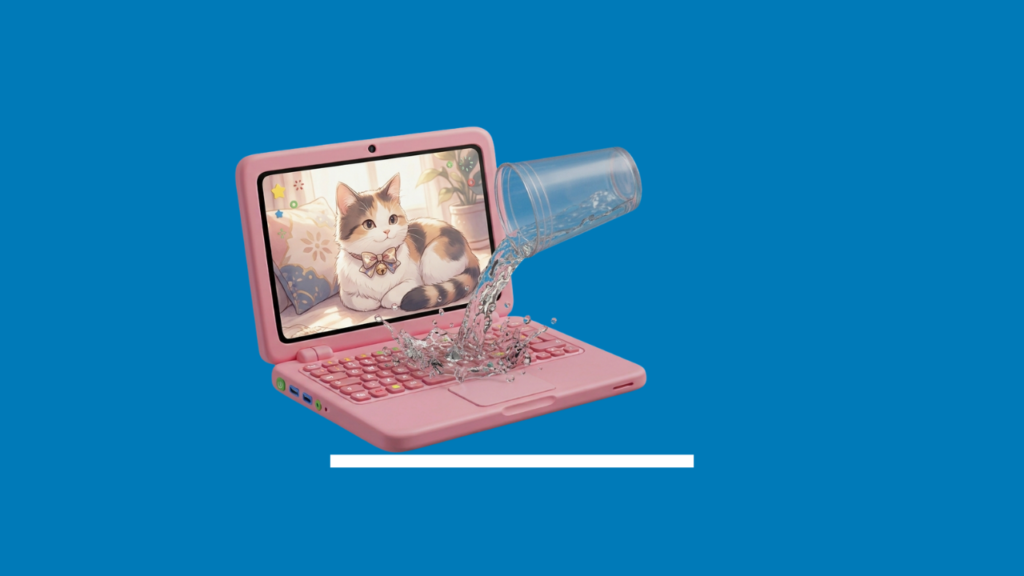
Accidentally spilling water on your laptop can be stressful, but what you do in the next few minutes can make all the difference. Acting quickly can help minimise laptop water damage, protect your valuable data, and potentially save you from expensive repairs or even replacing your device altogether. On the other hand, delaying the right steps can lead to permanent damage to critical internal components of your laptop.
In this guide, you’ll learn exactly what to do if you’ve accidentally spilled water on your laptop, what mistakes to avoid, how to identify signs of liquid damage, and when it’s time to seek professional laptop water damage repair service. Whether it’s plain water, coffee, or another liquid, following the right steps can significantly improve your chances of saving your laptop.
What to Do Immediately If Your Laptop Gets Wet
When water gets into your laptop, it can quickly reach sensitive internal components and cause short circuits, or permanent hardware damage. The sooner you respond, the better your chances of protecting your data and reducing the risk of liquid damage. Before attempting to dry or restart your laptop, gather a clean, dry towel and follow the steps below carefully.
1. Turn Off Your Laptop Immediately
The first thing to do when water spills into your laptop is to turn it off right away. You need to hold the power button till the laptop turns off because if you leave it powered on, it may get short-circuited and cause damage to the motherboard and other internal components. Doing this will lower the risks of laptop water damage and also save you from costly repairs.
2. Disconnect the Charger and External Devices
After you shut down your laptop, unplug the charger from the device and disconnect all other external devices that are connected with it. These include a USB drive, an external hard drive, keyboard, mouse, headphones and other devices. By doing so, you’ll eliminate any remaining electricity which can cause damage to your laptop.
3. Remove the Battery (If Possible)
If your laptop has a removable battery, then remove it as soon as possible. As a result, any residual power will be eliminated which helps reduce the risk of short circuits and other internal damages. However, if you have a built-in battery in your laptop, try not to open your device if you don’t have the technical knowledge to do that.
4. Drain Excess Liquid
Gently tilt the laptop so that all visible liquid is drained out. Do not touch the keys or wipe aggressively because this way you will push the liquid inside the laptop further. In order to wipe the excess moisture from your device, use a soft lint-free cloth.
5. Place the Laptop Upside Down on a Dry Towel
Place your laptop in a tent shape on a dry and clean towel. It will facilitate draining of any residual liquid from the laptop and its internal components and reduce the chance of moisture becoming trapped inside the laptop.
6. Allow the Laptop to Air Dry Completely
Give the laptop some time to air dry for 24 to 48 hours before you try turning it on. By doing so, any trapped moisture inside the laptop evaporates which reduces the risk of electrical damage.
What Not to Do If Your Laptop Gets Wet
Knowing what not to do is just as important as knowing the right steps to take. Even a simple mistake after liquid spillage can worsen the laptop damage and reduce the chances of a successful repair. Keep these common mistakes in mind before handling your device.
1. Don’t Turn It Back On Too Soon
It is understandable that you would like to know if your laptop functions correctly after spilling water, but if you turn it on right away while the device is not completely dry, it can cause a short circuit and can even damage the motherboard. Wait until the laptop has dried completely before turning it on or inspect your device with the professional if you’re unsure whether some moisture is still inside.
2. Don’t Use a Hair Dryer or Heat Gun
Do not use a hair dryer, heat gun or keep your laptop next to a heater to speed up the drying process because excess heat can do serious damage to the inner parts of your computer and may even warp plastic parts. So, let your laptop dry naturally in a place with good ventilation.
3. Don’t Shake the Laptop
It is pointless to shake your laptop hoping that some of the liquid will be drained as it won’t remove any liquid from inside and instead it may cause it to spread further and make the problem worse. Keep the laptop still or place it upside down and let gravity help drain the liquid naturally.
4. Don’t Assume It’s Safe Once the Surface Is Dry
Even if it seems to you that your laptop looks dry from the outside does not mean that there are no traces of liquid on its inner surfaces. There might still be some moisture trapped around the components like keyboard, motherboard and other internal components which may cause corrosion or internal damage when the device turns on.
5. Don’t Use the Rice Method
Putting your wet laptop into a bag filled with rice is a widespread misconception that unfortunately is not going to work because the rice cannot draw all of the moisture from the inside of your device and instead it may leave behind dust or starch particles that can cause additional problems. You should let your laptop dry naturally or seek professional assistance if you’re concerned about internal liquid damage
Common Symptoms and Fixes for Laptop Water Damage
Even if your laptop seems to be working after coming into contact with water, hidden damage may still exist. As moisture spreads inside the device, it can affect different components and cause issues over time. Here are the most common symptoms of laptop water damage and what you can do about them.
1. Laptop Won’t Turn On
If the laptop doesn’t turn on after drying then the water may have damaged the motherboard or any other vital component of the device. Avoid pressing the power button repeatedly to turn on the laptop as this can aggravate the damage.
What You Can Do:
- Don’t try to turn on the laptop.
- Get your laptop checked and determine which parts are damaged.
- Replace or repair the faulty parts, like the motherboard or power system, if required.
2. Keyboard Stops Working Properly
If some keys no longer work properly, get stuck, or type wrong letters when you press them, the moisture may have damaged the keyboard and its electrical connections.
What You Can Do:
- Ensure that the laptop has dried before testing the keyboard.
- Clean or replace the keyboard if the issue persists.
- Have your laptop checked for possible liquid damage to other components inside the computer.
3. Screen Flickering or Display Issues
Flickering screen, display lines, black spots, or a blank display could be an indication that the liquid may have caused laptop screen damage to the internal components of the screen.
What You Can Do:
- Determine whether the problem still exists when the laptop is completely dry.
- In case the problem persists, you may need laptop screen replacement or repair of the internal screen components. Though you can also replace the laptop screen by yourself, it requires specific tools and knowledge for avoiding any additional damage to the laptop.
- Avoid using the laptop and choose a computer repair service to professionally diagnose the issue and prevent further damage.
4. Random Restarts or Shutdowns
If your laptop randomly restarts or shuts down after being exposed to liquids, it could be because of moisture trapped inside the laptop, causing short circuits and damaging its internal parts.
What You Can Do:
- Do not use the laptop any more in order to prevent further damage.
- Get the laptop inspected with a professional to find out the components that have been affected.
- If the laptop needs to be repaired then look for a professional laptop repair service to safely restore your device.
5. Charging Problems
In case your laptop does not charge or charges occasionally after a water spill, the charging port or power circuits of the laptop might have been damaged.
What You Can Do:
- Look for any traces of moisture or other residues around the charging port.
- Do not force your charger in the port or repeatedly attempt to charge your laptop.
- If the problem persists, the laptop will need to have the charging port repaired or inspected further to identify other common laptop issues caused by the liquid spill.
6. Burning Smell or Overheating
If you notice a burning smell or unusual overheating after the liquid spill then it is a clear sign of short-circuit or serious damage to the laptop’s internal components. If you continue using the laptop in this situation then it will cause additional damage.
What You Can Do:
- Immediately turn off the laptop and remove its charger.
- Do not use the laptop further since there are many causes for laptop overheating which could be worsened after water damage.
- If the issue continues, choose a reliable computer repair service to find out the issue and repair it.
NOTE: Continuous overheating or noticing burning smells are often warning signs that your laptop needs professional repair and shouldn’t be ignored.
What determines whether it’s repairable
- What was spilled. Plain water is the best-case scenario. Sugary or salty drinks, and anything acidic, cause more residue and corrosion.
- How quickly it was powered off. Devices that are shut down immediately have a meaningfully better outlook than ones that kept running.
- Whether it was turned back on before being assessed. This is often the deciding factor between a straightforward clean-and-test repair and a much more serious one.
- Which components were affected. A wet keyboard or trackpad is often replaceable on its own. Damage that’s reached the motherboard is more serious, and depending on the extent, may cost more to repair than the laptop is worth.
How to Prevent Laptop Water Damage
While accidents can happen, a few simple precautions can greatly reduce the risk of laptop water damage. Adopting these everyday habits can help protect your device, extend its lifespan, and save you from costly repairs in the future.
1. Keep Liquids Away from Your Device
The simplest way to avoid laptop water damage is not to keep any liquids near your workspace. Even a small spill of water can enter your keyboard and can cause damage to internal components of your laptop.
2. Use Protective Laptop Accessories
The use of laptop accessories such as a keyboard cover, waterproof laptop sleeve, or protective carrying case is another way to prevent laptop water damage. Although it won’t be able to guarantee you complete protection from liquid damage, they provide an extra layer of safety against minor liquid spills and moisture.
3. Back Up Your Data Regularly
If you don’t back up your data regularly, all your documents, photos, and videos may get lost forever if you face this type of accidental laptop water damage. That is why backing up your data is important. If your laptop has already suffered liquid damage, using a reliable data transfer and backup solution can help protect your data and make recovery much easier.
What a professional assessment actually involves
Properly assessing liquid damage means opening the device, inspecting the internal components for moisture, residue, and early corrosion, and cleaning affected areas with the right materials before anything is tested or powered on. This is a different (and more thorough) process than just leaving a laptop to air dry — drying the outside does nothing for corrosion that’s already started internally.
Need Professional Laptop Water Damage Repair?
A laptop water damage does not automatically imply that your device is beyond repair; however, taking immediate action is important at this point. Knowing how to handle such cases can minimize the damage caused, secure your important data and make the process of repairs much more effective. One should also avoid making common mistakes like using a hair dryer or putting the laptop in a rice bag which will only worsen the situation.
In case your laptop is showing signs of liquid damage, don’t wait until the problem gets worse. Our skilled professionals at Computer Mechanics will be able to detect the cause of the damage, repair the damaged components, recover important data and bring your laptop back to normal working state.
Frequently Asked Questions (FAQs)
1. Can a water damaged laptop be repaired?
Yes, in many cases a water damaged laptop can be repaired, especially if you act quickly. The success of the repair depends on the type of liquid, the amount spilled, how long it remained inside the laptop, and whether critical components such as the motherboard were damaged.
2. How much water will damage a laptop?
Even a small amount of water can damage a laptop if it reaches the keyboard or internal components. The severity depends on where the liquid enters and how quickly the laptop is turned off and dried.
3. How long does it take for a laptop to dry after water damage?
It’s generally recommended to let your laptop air dry for at least 24 to 48 hours before attempting to turn it on. However, drying alone doesn’t guarantee that all internal moisture has evaporated, so professional inspection may still be necessary.
4. Can I put my laptop in rice?
No. The rice method is a common myth and isn’t a reliable way to fix laptop water damage. Rice cannot remove moisture trapped inside the laptop and may leave behind dust or starch particles. Air drying and professional cleaning are safer options.
5. Is Laptop Water Damage Covered Under Warranty or Insurance?
Most standard manufacturer warranties don’t cover accidental liquid damage. However, some accidental damage protection plans or insurance policies may cover repair or replacement, so it’s worth checking your warranty or policy details.
6. How much does it cost to repair a water damaged laptop?
The cost of repairing a water damaged laptop typically ranges from $80 to $400+, depending on the extent of the damage and the components affected. Minor cleaning or component repairs are usually less expensive, while severe damage involving the motherboard, keyboard, or screen can cost significantly more. A professional inspection is the best way to determine the exact repair cost and whether repairing the laptop is more cost-effective than replacing it.
