

Your screen suddenly turns blue, a wall of text flashes past, and your PC restarts on its own. If this just happened to you, no need to panic. A Blue Screen of Death (BSOD) doesn’t necessarily mean your computer is dying, it’s Windows’ way of stopping a serious problem before it causes further damage.
A BSOD is a critical error screen that Windows displays when it hits a fault it cannot recover from safely. Rather than letting the operating system keep running with corrupted memory or a broken driver, Windows halts everything, shows a cryptic stop code, and restarts. While the message can look intimidating, many BSOD errors are easily fixable.
This guide walks through what actually causes a Windows blue screen error, how to read the stop code you’re seeing, exactly how to fix it depending on whether your PC still boots, and when to hand the problem to a professional.
Key Takeaways
- A BSOD is a protective stop, not proof of permanent damage, Windows halts itself to prevent a bigger problem.
- Common causes of BSOD mainly occur due to: software issues (drivers, corrupted files, malware, bad updates) and hardware failures (RAM, heat, drive failure, PSU).
- The stop code displayed on the blue screen is the single most useful diagnostic clue, always note it before troubleshooting.
- Fix path depends on whether the PC still boots: use in-Windows tools (SFC, DISM, Event Viewer) if it does; use WinRE, Safe Mode, and System Restore if it doesn’t.
- Recurring BSODs after basic troubleshooting indicate that a professional diagnostic is needed.
What is the Blue Screen of Death?
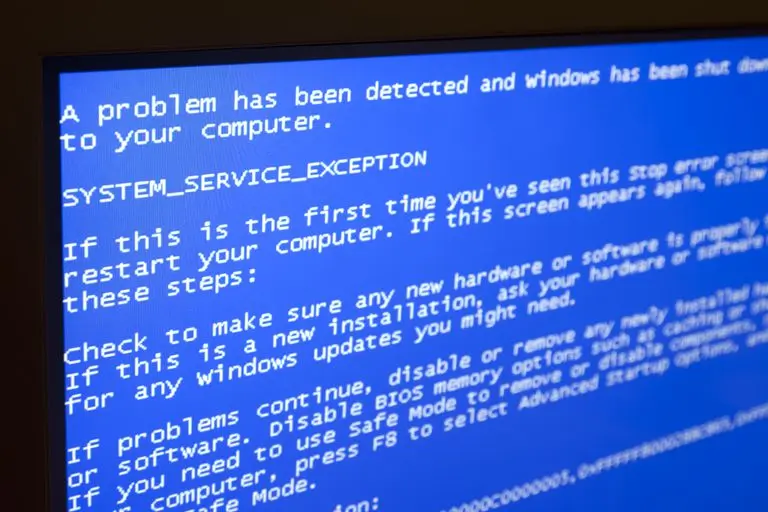
The Blue Screen of Death is a full-screen stop error that appears when Windows encounters a fault at the kernel level, the core part of the operating system that manages hardware and memory directly. Because kernel-level errors can corrupt data or damage hardware if left running, Windows immediately halts all processes, displays diagnostic information, and forces a sudden restart.
You’ll usually see a message like “Your PC ran into a problem and needs to restart,” along with a stop code; a short identifier such as IRQL_NOT_LESS_OR_EQUAL or a hexadecimal value like 0x0000000A. This code is the single most useful clue for diagnosing the crash, because it tells you what kind of failure occurred, even if it doesn’t always name the exact cause.
Windows also generates a minidump file at the moment of the crash. This small file records the contents of memory, the drivers loaded, and the state of the system when it failed. Technicians use tools like WinDbg to read minidump files and pinpoint the exact driver or process responsible.
You may also hear a BSOD referred to as a stop error, bug check, kernel error, or halt error, these are all the same thing under different names. On newer builds of Windows 11 (version 24H2 and later), Microsoft even changed the color from blue to black for this same type of error, which is why you might also see it called a “black screen of death.”
Thing to Know: A single BSOD, especially right after a Windows update or new hardware install, is common and usually harmless once resolved. It’s frequent, repeated blue screens that signal something needs real attention.
What Causes a BSOD?
A BSOD can be caused by a wide range of software or hardware problems. The key is identifying what’s triggering the crash so you can find the right fix. Some of the common causes of BSOD error includes:
Software-Related Causes
1. Corrupt or outdated drivers: Drivers are the translation layer between Windows and your hardware, your graphics card, network adapter, printer, and so on. When a driver is outdated, poorly written, or corrupted, it can send instructions the operating system can’t safely execute, triggering a driver conflict and a subsequent crash.
2. Corrupted system files or registry errors: Windows relies on a set of core system files and registry entries to run correctly. These can become damaged through improper shutdowns, power failures, malware, or a botched update. Once corrupted, Windows may be unable to complete essential tasks and will stop itself with a BSOD rather than risk further damage.
3. Malware and virus infections: Some malicious software is specifically designed to interfere with the Windows kernel, boot files, or system drivers. Beyond the direct damage it does, this kind of infection often produces unpredictable and recurring system crashes.
4. Conflicting applications or failed updates: Two programs competing for the same system resource, or a Windows Update that didn’t install cleanly, can each introduce instability. This is especially common with software that runs at a low system level, such as security suites, system utilities, or virtualization tools.
Hardware-Related Causes
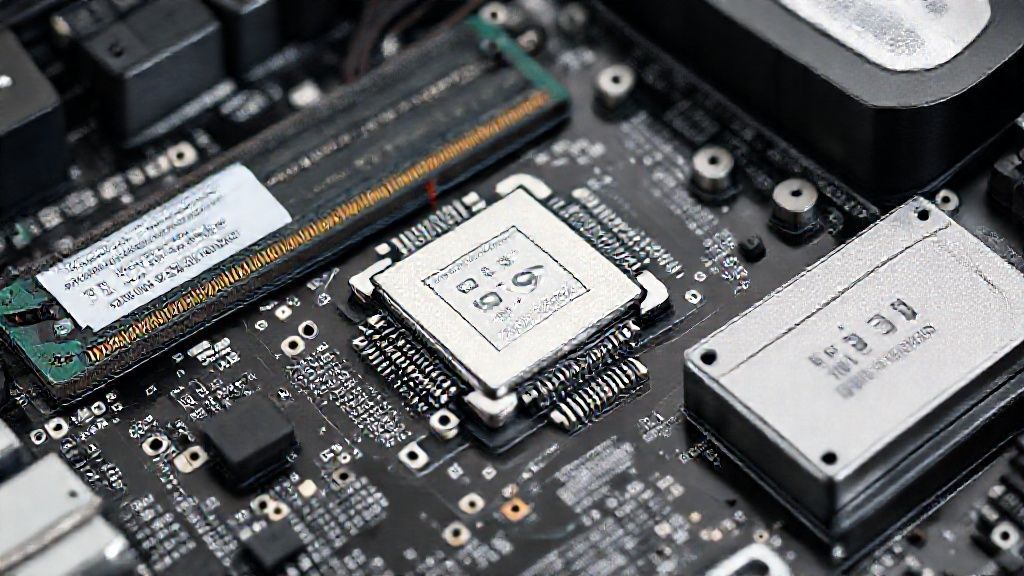
1. Faulty RAM: If a RAM module is defective, the system may read back corrupted or invalid data and Windows will crash rather than operate on bad information. Faulty RAM is one of the few causes that Windows’ built-in diagnostic tools can confirm directly.
2. Overheating components: CPUs and GPUs generate significant heat, and if a fan fails or dust blocks airflow, temperatures can climb past safe limits. Many systems are designed to force a shutdown (often as a BSOD) rather than risk permanent thermal damage. If crashes occur during gaming or rendering, check CPU temperature first.
3. A failing hard drive or SSD: A failing drive can prevent Windows from accessing essential files, which may cause an INACCESSIBLE_BOOT_DEVICE error and prevent the system from starting properly.
4. Power supply problems: An aging or underpowered power supply unit (PSU) can cause voltage drops under load, especially in systems with power-hungry components like a high-end GPU. Unstable power delivery is a frequently overlooked cause of otherwise unexplained crashes.
According to Microsoft’s official analysis of stop code errors, there is no single cause of stop errors.
Common BSOD Stop Codes in Windows 11 and 10
When you experience a Windows BSOD error, a stop code message is displayed on the screen that can help you pinpoint the reason behind the crash. Here are the ones you’re most likely to encounter, what they typically mean, and where to start looking.
| Stop Code | Hex Code | What It Usually Means | Most Likely Cause |
| IRQL_NOT_LESS_OR_EQUAL | 0x0000000A | A driver tried to access memory at an incorrect priority level | Outdated or faulty driver |
| PAGE_FAULT_IN_NONPAGED_AREA | 0x00000050 | The system tried to access memory that wasn’t available | Faulty RAM or a corrupted driver |
| SYSTEM_SERVICE_EXCEPTION | 0x0000003B | An exception occurred inside a system service | Incompatible or outdated driver |
| CRITICAL_PROCESS_DIED | 0x000000EF | A core Windows process stopped unexpectedly | Corrupted system files or failing storage |
| KMODE_EXCEPTION_NOT_HANDLED | 0x0000001E | An unhandled error occurred in kernel mode | Recently installed or updated driver |
| DRIVER_IRQL_NOT_LESS_OR_EQUAL | 0x000000D1 | A driver accessed memory it shouldn’t have, at high priority | Faulty or incompatible driver |
| MEMORY_MANAGEMENT | 0x0000001A | A problem with how memory is being allocated | Faulty RAM or a corrupted page file |
| INACCESSIBLE_BOOT_DEVICE | 0x0000007B | Windows can’t reach the drive it needs to start up | Corrupted boot files, storage driver issue, or BIOS/UEFI misconfiguration |
| VIDEO_TDR_FAILURE | 0x00000116 | The graphics driver stopped responding | Outdated GPU driver or GPU overheating |
| DPC_WATCHDOG_VIOLATION | 0x00000133 | A system operation took too long to complete | Storage or SSD driver issue |
If you don’t see your exact code here, the same principle applies to any of them: write it down (or photograph the screen), then search for that specific code alongside your troubleshooting — it will point you toward driver, memory, or storage issues far faster than guessing.
How to Fix a Blue Screen of Death (BSOD)
The right fix for BSOD error depends on one thing first: does your PC still boot into Windows normally? Work through whichever scenario matches what’s happening on your screen right now.

Your PC Still Boots Into Windows
- Write down the stop code: Before doing anything else, note the exact error code shown on the blue screen. It’s your starting point for every step that follows.
- Check Event Viewer: Type Event Viewer into the Start menu, then go to Windows Logs > System. Look for critical or error-level entries around the time of the crash, this often names the exact driver or process involved.
- Review what changed recently: Most BSODs follow a recent change:
- New hardware: Disconnect anything you added recently (including USB peripherals) and restart.
- New software or drivers: Uninstall the program, or open Device Manager and roll back the driver to its previous version.
- A recent Windows Update: If the crashes began right after an update, consider uninstalling that specific update from Settings.
- Run a System File Checker scan: Open Command Prompt as administrator and run sfc /scannow. This checks for and repairs corrupted system files automatically.
- Run DISM if SFC doesn’t resolve it: The command DISM /Online /Cleanup-Image /RestoreHealth repairs the underlying Windows system image that SFC relies on. Expect this to take 10–30 minutes, and make sure you’re connected to the internet.
- Check your disk and memory:
- Run chkdsk C: /f /r to find and repair disk errors.
- Run Windows Memory Diagnostic (search for it in the Start menu) to test your RAM for faults.
- Run a full malware scan: Use a reputable, up-to-date antivirus tool to rule out infection as a cause.
- Update Windows and your drivers: Go to Settings > Windows Update and install everything available, then check Device Manager for any driver marked with a warning icon.
Your PC Won’t Boot Normally
- Force your way into the Windows Recovery Environment (WinRE): Force-shutdown your PC (hold the power button) during the boot process three times in a row. On the third attempt, Windows will typically boot into the Automatic Repair / recovery screen.
- Try Startup Repair: From WinRE, select Troubleshoot > Advanced Options > Startup Repair. This scans for and automatically fixes common boot-blocking issues.
- Boot into Safe Mode: From the same Advanced Options menu, choose Startup Settings > Restart, then select Safe Mode with Networking. Safe Mode loads only the essential drivers, which lets you uninstall a problematic program, roll back a driver, or run a scan without the conflict that’s causing the crash.
- Use System Restore: If the PC was working recently, restoring to an earlier point (before the BSODs started) can undo whatever change triggered the problem, without touching your personal files.
- Reset BIOS/UEFI to default settings: Misconfigured BIOS settings; particularly SATA/AHCI mode changes, are a known cause of INACCESSIBLE_BOOT_DEVICE errors. Restarting into BIOS (commonly F2 or Del at startup) and loading defaults can resolve this.
- Disconnect non-essential hardware: Remove extra RAM sticks, secondary drives, and expansion cards, then try booting again with a minimal configuration to isolate a hardware conflict.
- Clean install as a last resort: If nothing above resolves it, back up your data and perform a fresh installation of Windows. This clears out any deep system corruption that repair tools can’t fix.
How to Prevent Future BSODs
It is a lot easier to prevent BSOD errors than to fix the errors when they happen. Regular maintenance and careful management of systems help to greatly lower the risk of crashes. Take a look at the key preventive measures listed below.
- Keep Windows and drivers current: Install Windows updates on a regular basis. Update the latest drivers for your graphics card, motherboard, and peripherals. Updated drivers and system patches regularly.
- Run reliable, real-time antivirus protection: Use a good antivirus program that scans regularly, removes viruses with real-time protection. This blocks the malware infections that damage system files and destabilize the kernel.
- Manage heat properly: Clean dust from fans and vents every few months, and make sure your PC has adequate airflow. Fixing overheating issues early is one of the most preventable ways to avoid hardware damage and failure.
- Back up your data regularly: Backups won’t stop a BSOD from happening, but Data backups are to guarantee that you do not lose any data, even in case of a BSOD.
- Monitor system health: Free tools that monitor CPU/GPU temperature and drive health can flag a failing component before it causes a hard crash.
- Good Software Management Practice: Software conflicts that are caused, especially after updates, have always been a common reason for BSODs. In no case should you download untrusted programs or run numerous low-level utilities.
When to Call a Professional
Basic troubleshooting resolves most one-off BSODs. But there are clear signs it’s time to stop DIY-ing and get professional repair. You should consider contacting a technician if you notice the following signs:
- The same stop code keeps reappearing after you’ve updated drivers, run SFC/DISM, and scanned for malware.
- Your PC won’t boot at all, even into Safe Mode or WinRE.
- You suspect hardware faults like failing RAM, a dying drive, or PSU issues, but don’t have the tools or confidence to test components yourself.
- You’re not comfortable running commands like chkdsk or interpreting a minidump file, and don’t want to risk making things worse.
At that point, a proper diagnostic saves time and protects your data far better than repeated guesswork. Professional technicians have access to advanced diagnostic tools and know-how to take care of complicated Windows BSOD cases without damaging your system. At Computer Mechanics Perth, our expert technicians can run full hardware diagnostics, analyze your crash dumps directly, and identify whether a repair is sufficient or a component needs replacing.

Conclusion
A Blue Screen of Death looks alarming, but it’s Windows doing exactly what it’s designed to do: stopping before a small problem becomes a big one. Most cases trace back to a handful of familiar culprits, an outdated driver, a corrupted system file, faulty RAM, or an overheating component. Know common causes, recognise stop codes, and perform the right maintenance practices. This way, you can make your Windows system stable, secure, and run smoothly.
However, if your problem seems too complicated for you to find a solution by yourself, a professional is always available at Computer Mechanics for laptop and pc repairs in Perth to help you bring your PC back to the best working condition.
FAQs
1. Can a BSOD damage my PC?
A blue screen itself doesn’t damage your computer, it’s designed to prevent damage by halting the system before a fault spreads further. However, the underlying issue causing the BSOD, such as overheating or a failing drive, absolutely can cause lasting hardware damage if it’s left unaddressed.
2. Can a virus cause a BSOD?
Yes. Malware that targets the Windows kernel, boot files, or core system drivers can trigger repeated, unpredictable blue screens. If you’re seeing frequent BSODs with no clear pattern, a full antivirus scan should be one of your first troubleshooting steps.
3. Is it safe to just restart when a BSOD error occurs?
In most cases, yes, restarting is exactly what Windows is designed to do after a stop error, and a single, isolated BSOD often resolves itself this way. The concern is frequency: if the same error keeps happening after every restart, that’s a sign of an underlying issue that needs proper troubleshooting rather than repeated reboots.
4. Can I fix the BSOD error myself?
Many BSODs are fixable without professional help, especially ones caused by drivers, Windows Updates, or minor software conflicts. If the issue turns out to be hardware-related, such as failing RAM or a dying drive, or if your PC won’t boot at all, that’s usually the point where a professional diagnostic is the safer and faster path.
5. Will the Blue Screen of Death fix itself?
Sometimes, if the BSOD was caused by a temporary system glitch, restarting your computer may resolve the issue. However, if the blue screen keeps appearing, you’ll need to troubleshoot the underlying cause by checking drivers, hardware, system files, or Windows updates.
